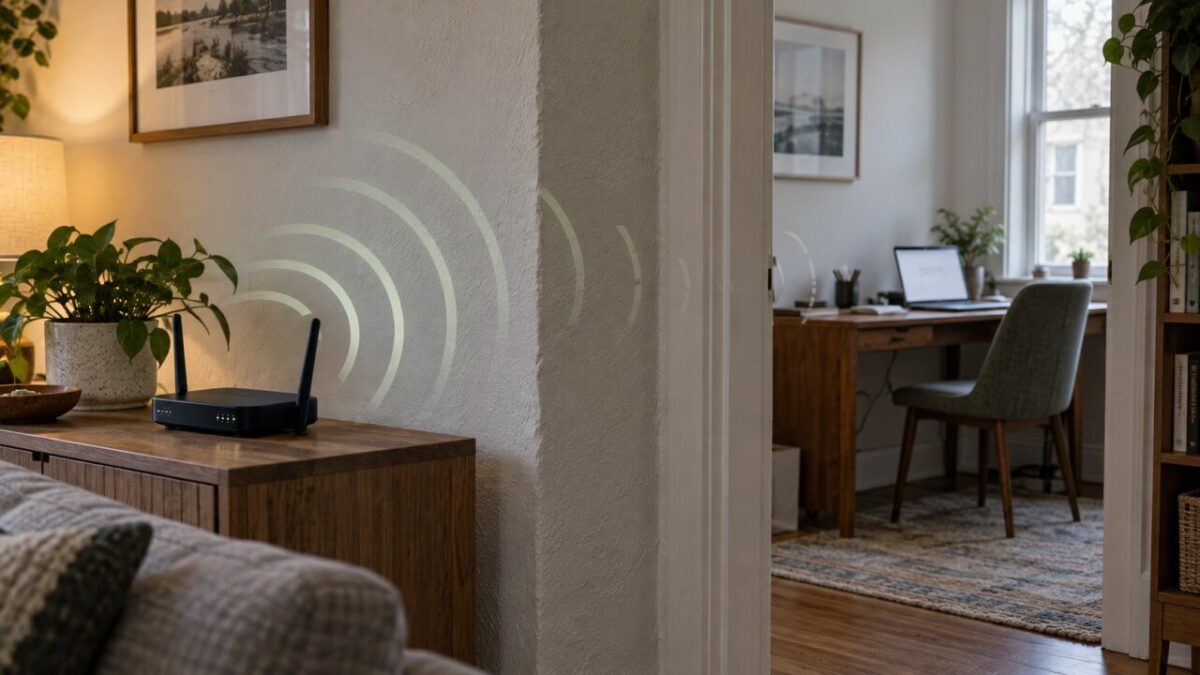
Your phone loads everything perfectly while you are sitting beside the router. Walk into the next room, and suddenly the spinning loading icon gets a promotion to full-time employee. Pages crawl, video buffers, and your phone still insists it is connected.
That pattern usually tells you something useful. Internet service may be working normally.
Trouble is more likely happening along the wireless path between your router and the weak room.
Signal strength drops as distance increases, but a few yards should not automatically destroy a connection. Walls, floors, furniture, router position, frequency band, and radio interference can make a short trip surprisingly difficult for Wi-Fi.
Before buying new hardware, look at what the signal has to cross.
Your Wall May Be the Real Problem
Wi-Fi does not politely walk around obstacles. Radio signals travel through walls, floors, furniture, appliances, and whatever else sits between the router and your device.
Material matters as much as distance.
Cisco’s reference figures put some scale on that problem. Drywall may knock about 3 dB off a Wi-Fi signal, while brick is closer to 10 dB and concrete around 12 dB.
Exact loss changes with thickness, moisture, metal, and construction, but one concrete wall can clearly be a much bigger obstacle than one sheet of drywall.
Drywall and wood usually cause less trouble. Brick, stone, concrete, tile, and thick reinforced walls can absorb or weaken much more of the signal. A room only a few yards away can therefore perform worse than another room farther down the hall.
Metal causes a different headache. Instead of simply weakening radio energy, metal can reflect it and create strange weak spots.
Metal wall studs, ductwork, large appliances, mirrors, and refrigerators can all interfere with a clean path.
Water also absorbs wireless energy. Aquariums, water tanks, water heaters, and dense plumbing may contribute to weak coverage when they sit in the signal path.
Picture a router on one side of a tiled bathroom and a bedroom on the other.
Physical distance might be tiny, but Wi-Fi may have to cross:
- Tile
- Pipes
- Water
- Wall framing
- Metal fixtures
Meanwhile, a room farther away through ordinary drywall might work perfectly.
Distance alone is not telling the whole story.
Your Router May Be in a Bad Location
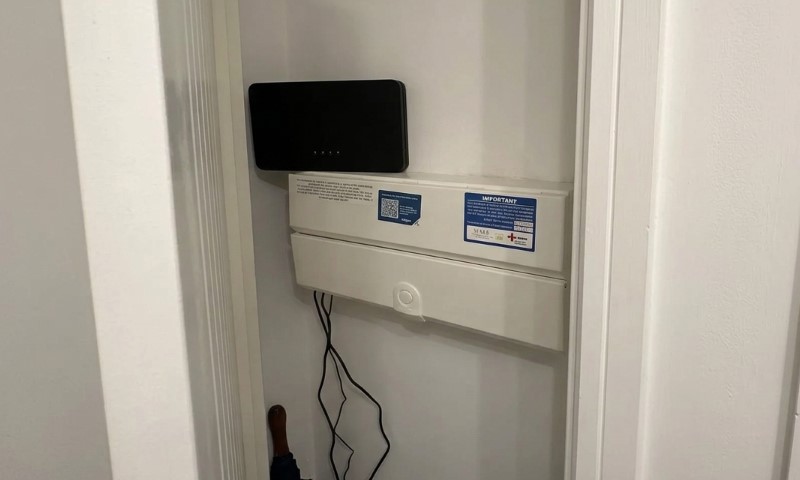
Router placement can create a coverage problem before any wall gets involved.
A router hidden inside a cabinet or media console has to push its signal through furniture before reaching the room. Putting it on the floor adds another poor starting point. Closets, garages, utility rooms, and corners can also limit useful coverage.
Placing it against an exterior wall wastes coverage outside your home, where your patio furniture may enjoy excellent Wi-Fi even if your bedroom does not.
A better position is usually central, elevated, open, and clear of large metal objects or water.
Try moving the router several feet before buying anything. Put it on a shelf or table rather than the floor. Pull it out of an enclosed cabinet. Keep some space between it and appliances, aquariums, mirrors, or dense walls.
Small moves can change which obstacles sit in the signal path. One relocation may remove an entire wall or large object between the router and the troublesome room.
Free fixes rarely get cheaper than moving something you already own.
5 GHz May Be Fast but Struggle Through the Wall
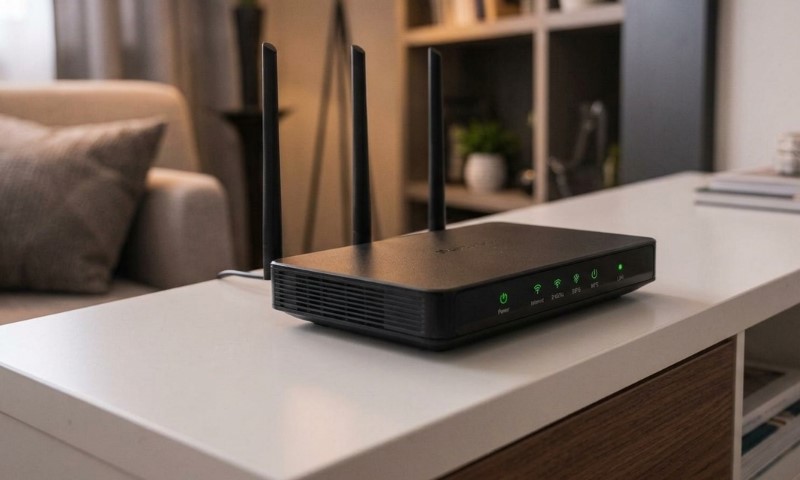
Modern routers commonly use several frequency bands, and each behaves differently.
2.4 GHz usually travels farther and handles obstacles better. It also offers lower speeds and faces more congestion.
5 GHz can provide higher speeds and more usable channels, but it loses strength faster when walls and other barriers get involved.
Aruba’s RF reference data puts brick or concrete loss at roughly 6 to 18 dB on 2.4 GHz, compared with 10 to 30 dB on 5 GHz. A steel door can be harsher still. Suddenly, switching bands does not look like superstition. It looks like physics.
6 GHz adds more high-speed spectrum on newer equipment, but its useful reach through building materials is generally shorter still.
That difference can create a confusing situation. Your phone may show a Wi-Fi connection in the next room while pages barely load. Device and router have technically maintained contact, but the connection may be too weak or unstable for reliable data transfer.
In other words, your phone and router appear to disagree about what “connected” means.
Try 2.4 GHz in the problem room. A slower band with a stronger signal can deliver a better real-world connection than a faster band that is barely reaching the device.
Band selection is especially useful when one room sits behind thick walls or several obstacles.
Interference Can Make a Weak Signal Worse
Walls are not the only thing competing with Wi-Fi.
Nearby wireless networks, microwave ovens, Bluetooth equipment, baby monitors, older cordless phones, and some wireless cameras can add interference. Problems are often more noticeable on 2.4 GHz because only a small number of channels can operate without overlapping.
Interference usually looks a little different compared with a physical obstruction.
A crowded radio environment may cause random slowdowns, unstable speeds, or brief connection drops across multiple areas. One sharply defined bad room points more strongly toward wall construction, router placement, or signal range.
Still, interference can make an already weak room worse. A marginal signal has little room for extra radio noise.
If nearby networks are crowding the same channel, changing channels may help. Router firmware updates can also improve stability or radio behavior on some models.
Treat interference as another clue, not the automatic suspect.
Test the Problem Before Buying Anything
A few simple tests can tell you if you have an internet problem, a Wi-Fi problem, or one stubborn room.
Use the same device for the first comparisons so hardware differences do not muddy the result.
- Run a test beside the router.
- Repeat it in the weak room.
- Try a second device in that room.
- Walk back toward the router and note where normal performance returns.
- Test Ethernet near the router if a wired connection is available.
Try 2.4 GHz, then temporarily move the router higher and into a more open position.
Results matter more than the test itself.
Good wired performance plus strong Wi-Fi beside the router suggests your internet service is probably doing its job. Poor Wi-Fi only in one room points toward coverage.
A second device helps rule out one phone or laptop having a weak Wi-Fi radio, damaged antenna, or software issue.
If your device or a Wi-Fi analyzer shows signal strength in dBm, Cisco uses about -66 dBm as a common client coverage target.
Do not treat that number as a magical cutoff, since devices and applications differ. It does give you something more useful than counting Wi-Fi bars, which have never been famous for detailed testimony.
Fixes That Actually Make Sense
Start with the changes that cost nothing.
Move the router toward the center of the usable living area, raise it, and keep it in the open. Keep large metal objects, mirrors, appliances, tanks, and enclosed furniture away when possible.
Use 2.4 GHz for devices that need extra reach. Keep 5 GHz for nearby devices that benefit more when speed is the priority. Newer 6 GHz connections are best suited to areas where a strong short-range link is available.
Update router firmware. If congestion appears to be part of the problem, try a less crowded Wi-Fi channel.
Hardware becomes useful after placement and band changes stop helping.
A range extender can work for one or two small dead zones. Traditional extenders come with a tradeoff because they may need to receive traffic and retransmit it over the same radio connection. Usable throughput can drop by roughly half in that setup.
Traditional extenders come with a tradeoff. A basic repeater using the same frequency to receive traffic and send it onward can cut available bandwidth by roughly 50%. Coverage improves, but every packet has acquired an extra errand.
Placement matters here too. Do not put an extender inside the dead zone. It needs a healthy connection back to the main router. Put it somewhere between the router and weak room, where the original signal is still solid.
Mesh is often a better fit for several bad rooms, multiple floors, or complicated layouts. Multiple nodes distribute Wi-Fi around the home instead of asking one router to punch through every obstacle.
For maximum stability, Ethernet backhaul connects mesh nodes by cable.
Wireless backhaul uses radio capacity for communication between nodes, so a wired link can reduce that competition and improve consistency.
Do You Really Need a New Router?
Not automatically.
An expensive router placed in the same closed cabinet behind the same concrete wall still has to obey physics. More antennas, stronger hardware, and newer Wi-Fi standards can improve performance, but they cannot make every obstacle irrelevant.
Router age can matter, though.
Older equipment may have fewer antennas, weaker radios, slower processors, and less capable signal management. Wi-Fi 6 improved efficiency when many devices share a network. Wi-Fi 6E added access to the 6 GHz band. Wi-Fi 7 added features such as Multi-Link Operation, which can use more than one band or link to improve performance in supported setups.
Upgrading makes sense when aging hardware is limiting speed, device capacity, reliability, or newer features.
Coverage still deserves separate attention. A new router might improve usable range, but placement and construction can continue setting the practical limit.
Replacing hardware should solve an identified limitation, not act as a very expensive way to move the same problem into a newer plastic box.
Follow the Signal
Strong Wi-Fi beside the router and terrible Wi-Fi one room away gives you a useful question to investigate: what sits in the signal path?
Concrete, brick, metal, mirrors, water, poor router placement, and higher-frequency bands can turn a short physical distance into a difficult radio path.
Start by moving the router and testing another band. Check if one wall or object lines up with the weak area. Rule out device-specific trouble and confirm that wired internet performance is normal.
If a physical gap still exists after those checks, match the fix to the size of the problem. An extender can cover a small weak spot.
Mesh can handle several rooms or floors. Wired backhaul or access points make sense when consistent performance matters most.
Wi-Fi problems often look mysterious until you stop measuring distance in feet and start looking at what the signal actually has to cross.